
Apr 8, 2025 • Adrian T
How to Delete a page in Google Docs
After copying, pasting or editing large chunks of texts, an extra blank page can sometimes sneak into your document. Whether it’s a stray page at the end or a stubborn blank space in the middle of your work, here’s how to delete a page in Google Docs effectively.
1. Delete Unwanted Text or Blank Space
The most common reason for an extra page is extra blank lines, spaces, or page breaks. Here’s how to remove them:
-
Open your Google Doc.
-
Click and drag your mouse to highlight any** blank lines or empty spaces ** on the unwanted page
-
Hit the **Backspace ** (Windows) / **Delete ** (Mac) key to remove them
❗Sometimes just one extra paragraph return (Enter key) is enough to create a new page. Check carefully!
2. Remove a Page Break
Page break forces content to the next page, and often causes unexpected blank pages. Here’s how to check and delete them:
To identify a Page Break:
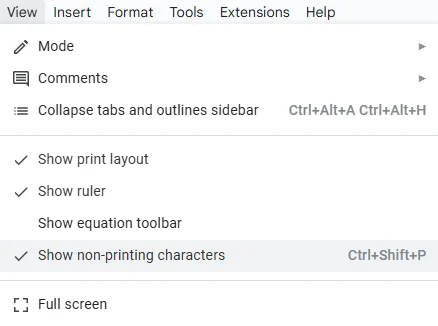
- Click on **View ** on the top left corner of the page and select Show non-printing characters, which will reveal hidden breaks and spacings.
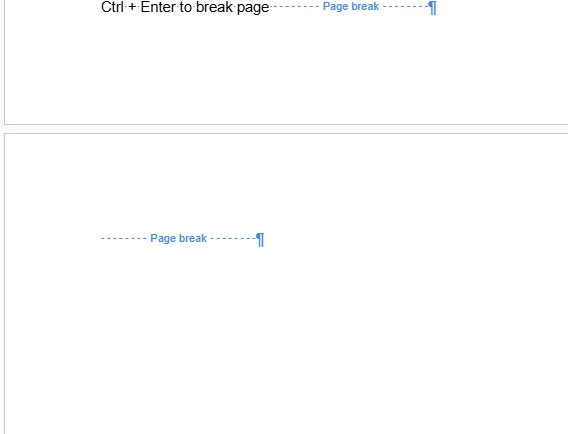
- OR, just click around the page and look for large, empty areas.
To remove the unwanted page break,
-
Place your cursor directly above the unwanted page.
-
Press Backspace. If you see the content jump up, this means you’ve removed a page break.
3. Check Your Table or Image Sizes
Large tables, images, or charts that don’t fit on the current page might push content to a new page. Try resizing them by:
-
Click on the image or the table.
-
Use the blue handles to resize it.
4. Reduce Bottom Margin
If a small bit of content spills onto a new page, try adjusting the page margins:
-
Click File > Page setup
-
Reduce the Bottom margin slightly (e.g., from 1 inch to 0.8 inches).
-
Click OK .
This pulls the last bit of content up, possibly eliminating the need for a new page.
By using these steps, you can easily delete unwanted pages in Google Docs and keep your document looking clean and professional.
No more mysterious extra pages at the end of your report! ✂️📄
Happy editing!
Related Posts

AEO vs. GEO: The Marketer's Guide to AI-Driven Search Optimization

Is Blogging Dead in 2026? The Ultimate Guide to Starting a Profitable Blog Today

Technical SEO for Developers: Building a High-Performance Foundation

How to Write SEO Content That Ranks High: A Comprehensive Guide

Unlock Your Potential: A Treasure Trove of FREE AI Tools at Your Fingertips!

How to change Margins in Google Docs

Essential Google Docs Shortcuts to Save Time

The Entrepreneurial Leap: When Your Intrapreneurial Spirit Yearns for More
