
Mar 10, 2025 • Adrian T
How to Track Changes by Different Writers in Google Docs
Collaboration in Google Docs is seamless, allowing multiple people to edit a document in real time. However, when multiple writers contribute, it's essential to track changes effectively. Google Docs provides built-in tools to help you monitor edits, comments, and suggestions. Here’s how to track changes by different writers.
Step 1: Use Suggesting Mode
Google Docs has a Suggesting mode, similar to Microsoft Word’s Track Changes feature. To enable it:
-
Open the document.
-
Click on the Editing button (pencil icon) in the top-right corner.
-
Select Suggesting mode.
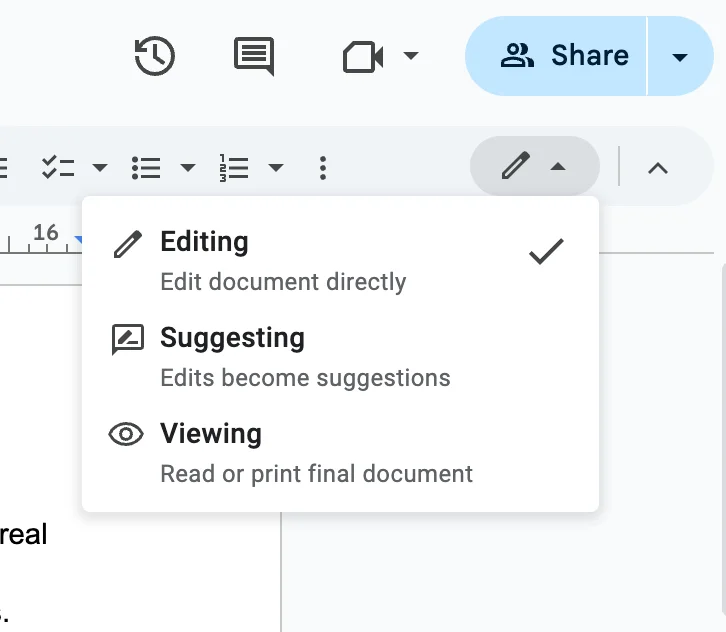
Now, any edits made will appear as suggestions, with a different color for each writer.
Step 2: View Edit History (Version History)
Google Docs automatically tracks changes through Version History , allowing you to see who made what edits and when.
-
Click File in the menu bar.
-
Select Version history > See version history .

-
A right-hand panel will open, displaying different versions of the document.
-
Click on a version to view changes, including highlighted edits with timestamps and the editor’s name.
-
You can also revert changes to any version.
Step 3: Add Comments and Mentions
To provide feedback or ask questions to specific writers:
-
Highlight the text.
-
Click the comment icon (or right-click and select Comment ).
-
Type your feedback and mention a specific writer using @ (e.g., @JohnDoe).
The mentioned user will receive an email notification.
Step 4: Use Google Docs Notifications
To stay updated on changes made by others:
-
Click Tools in the menu bar.
-
Select Notifications settings .
-
Choose All comments or Added or removed content to receive email alerts when edits occur. Note this might create
Step 5: Accept or Reject Suggested Edits
If changes were made in Suggesting mode, you can approve or discard them:
-
Click on a suggested edit.
-
Click ✔ Accept to keep the change or ✖ Reject to discard it.
Conclusion
Tracking changes in Google Docs is easy with Suggesting mode, Version History, and comments. By leveraging these tools, you can efficiently collaborate while maintaining full control over document revisions. Try these features in your next project!
Related Posts

AEO vs. GEO: The Marketer's Guide to AI-Driven Search Optimization

Is Blogging Dead in 2026? The Ultimate Guide to Starting a Profitable Blog Today

Technical SEO for Developers: Building a High-Performance Foundation

How to Write SEO Content That Ranks High: A Comprehensive Guide

Unlock Your Potential: A Treasure Trove of FREE AI Tools at Your Fingertips!

How to Delete a page in Google Docs

How to change Margins in Google Docs
Essential Google Docs Shortcuts to Save Time
